
This guide explains how to access your account’s overall performance statistics, such as profile views and saves.
Step-by-Step Instructions
Open the Side Menu
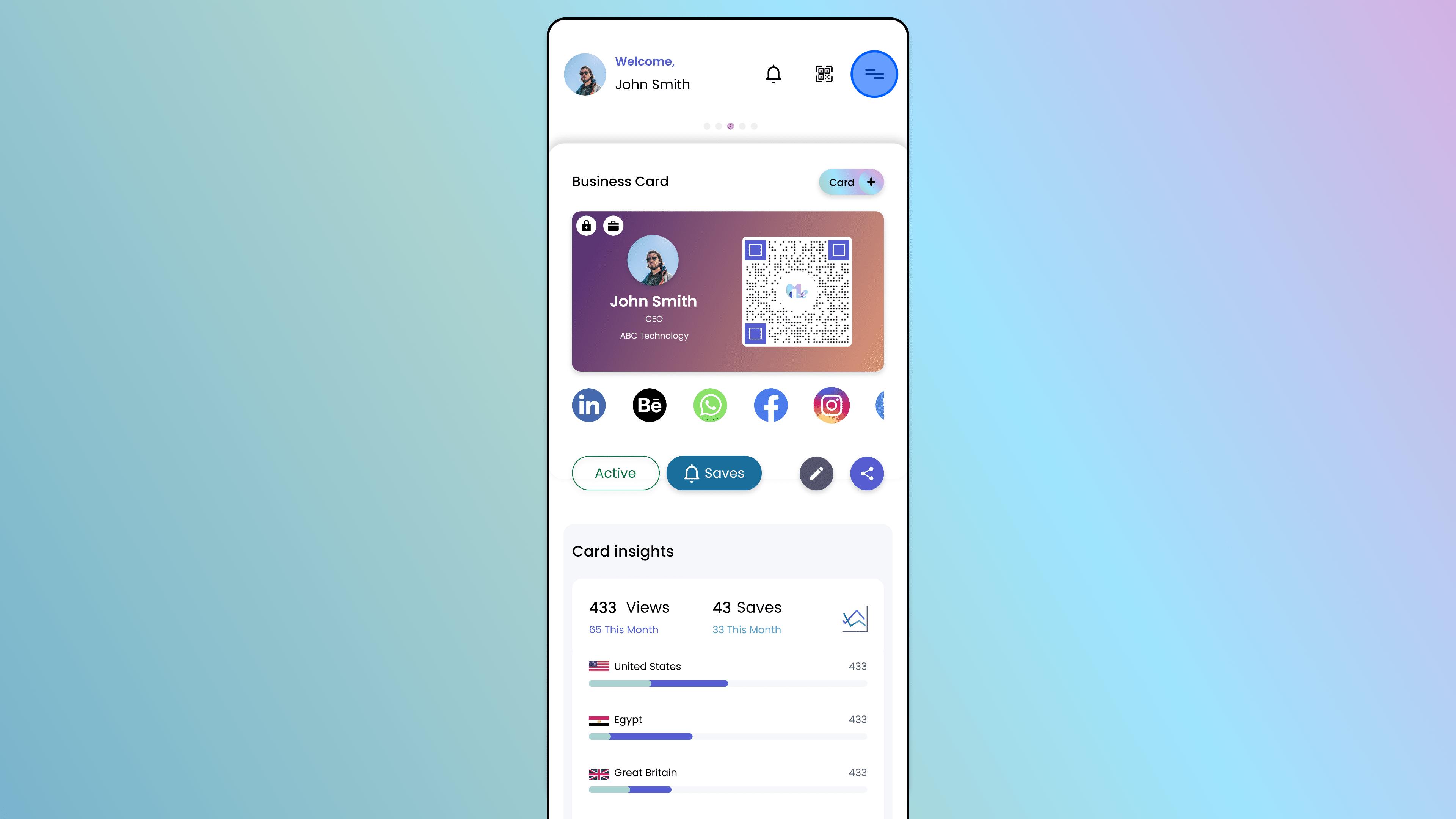
On the main screen of the 1Me app, tap on the Menu icon (usually three lines or a profile icon in the corner).
Access Settings
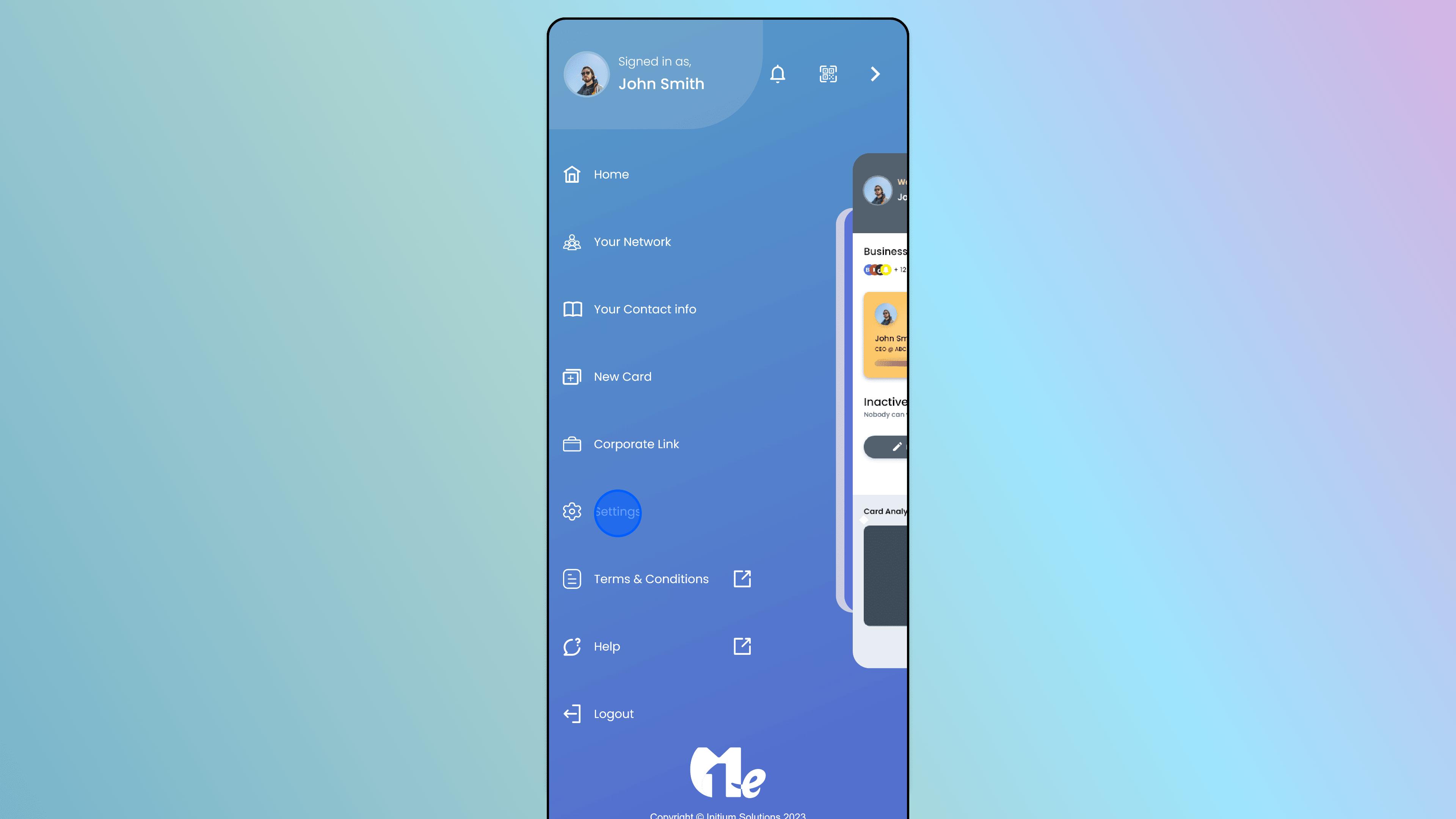
From the side menu options, tap on "Settings".
Access "More" / Insights
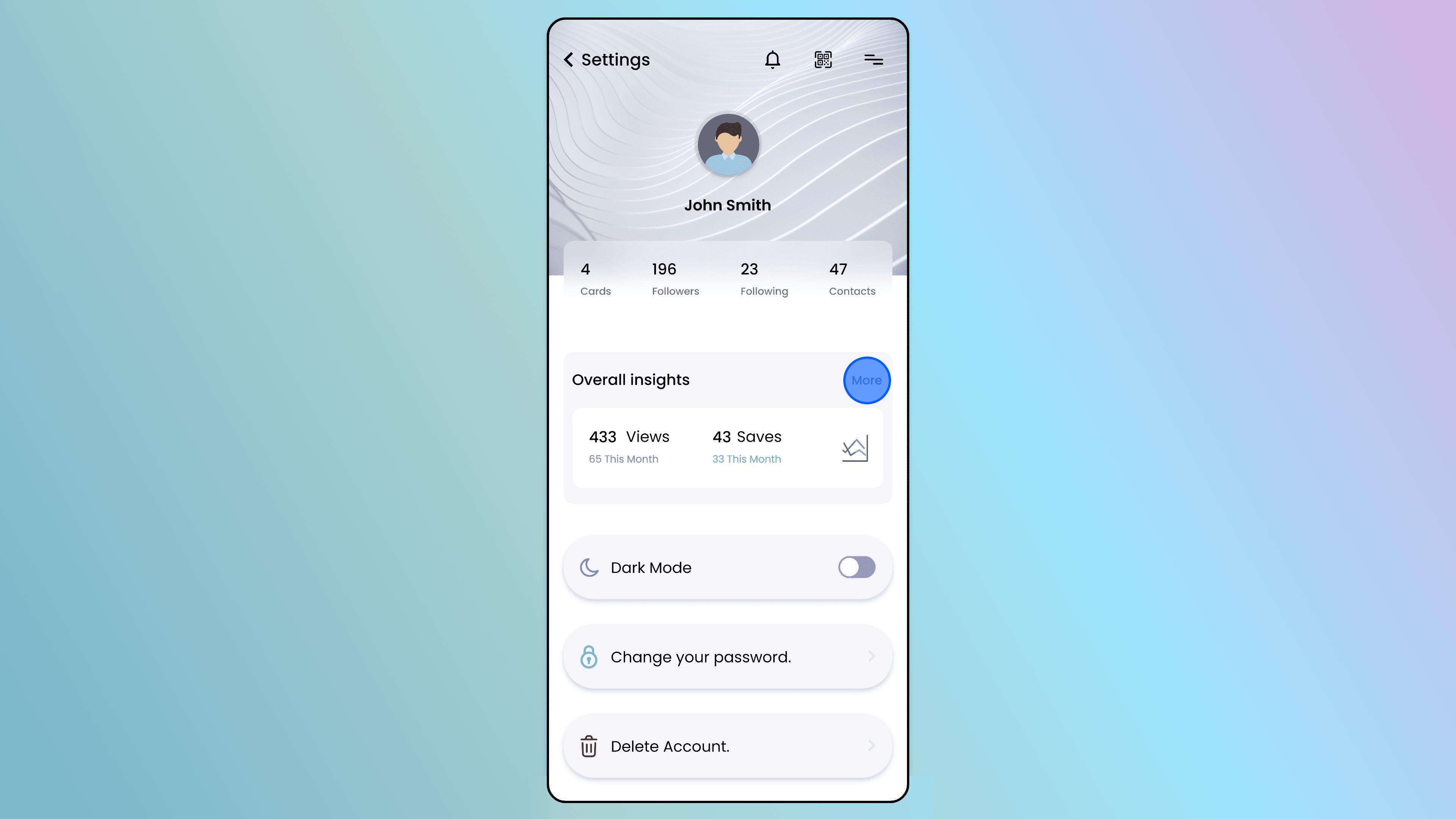
Inside the Settings menu, locate and tap on the "More" option (or section).
Note: This section typically houses your account analytics.
View Statistics
You will now see your Overall Insights.
The screen displays key metrics such as:
Views: The total number of times your cards have been viewed.
Saves: The number of times people have saved your contact details.
Tip: Regularly checking your insights helps you understand how effectively your digital networking is performing.
Walkthrough · 3 steps
Monthly insights
Still stuck? Chat with us, send us a message or report an issue.