
This guide covers the steps to disconnect or remove a saved contact from your network in the 1Me app.
Step-by-Step Instructions
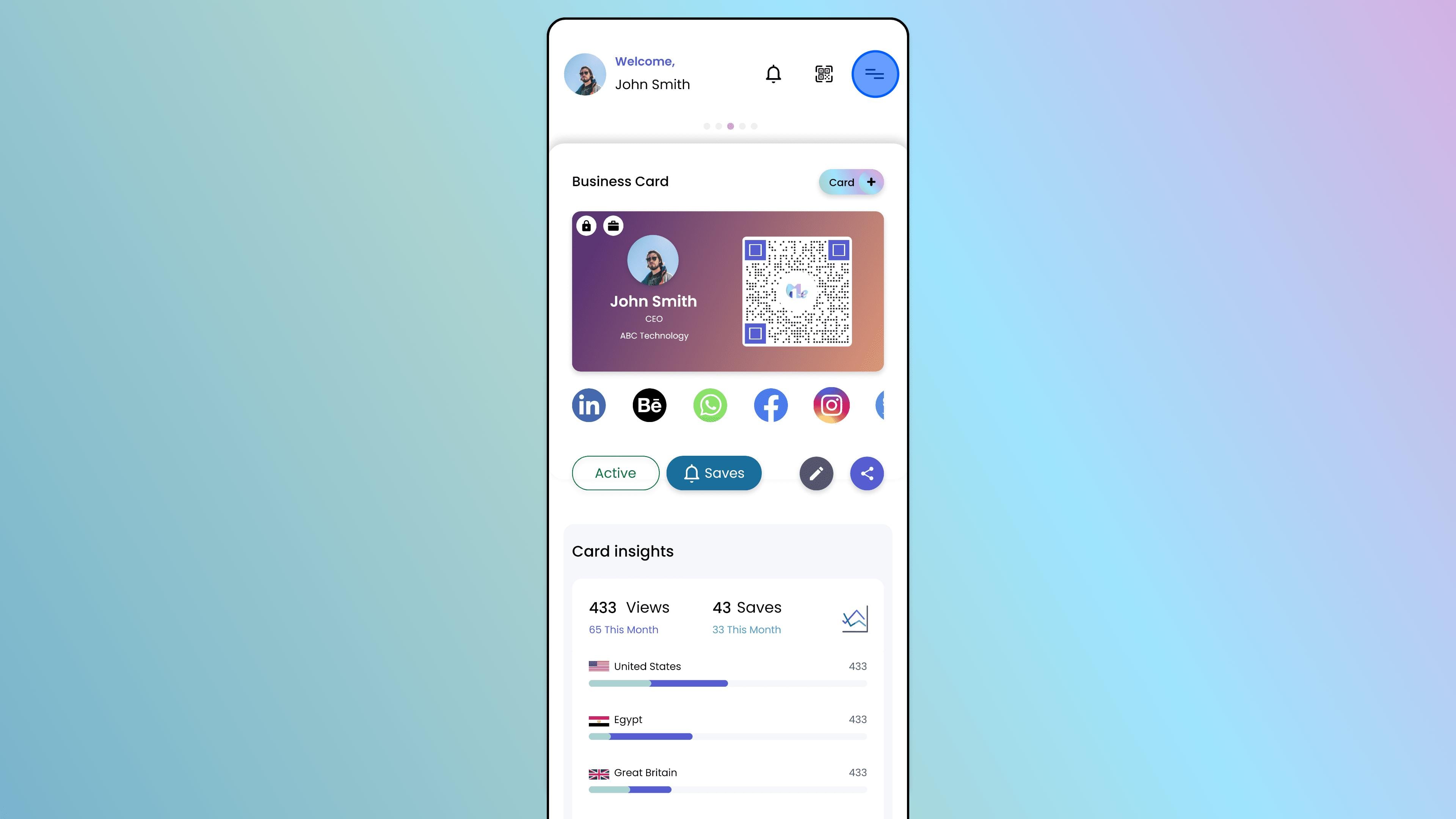
Open the Side Menu
On the main screen of the 1Me app, look for the Menu icon (often three lines or a profile icon in the corner).
Tap on it to open the side menu.
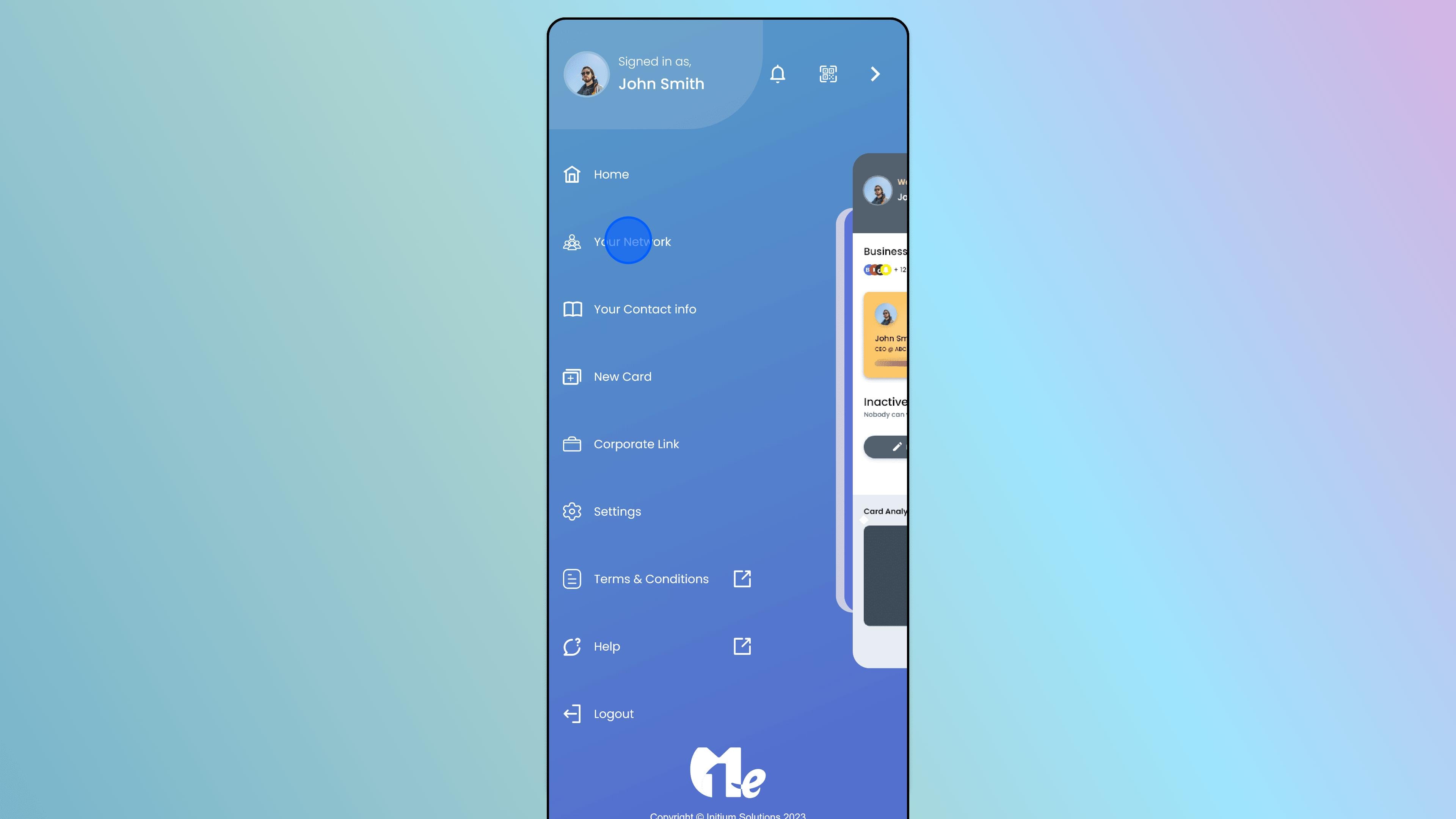
Access Your Network
From the menu options, select "Your Network" (or "Network") to view your connections.
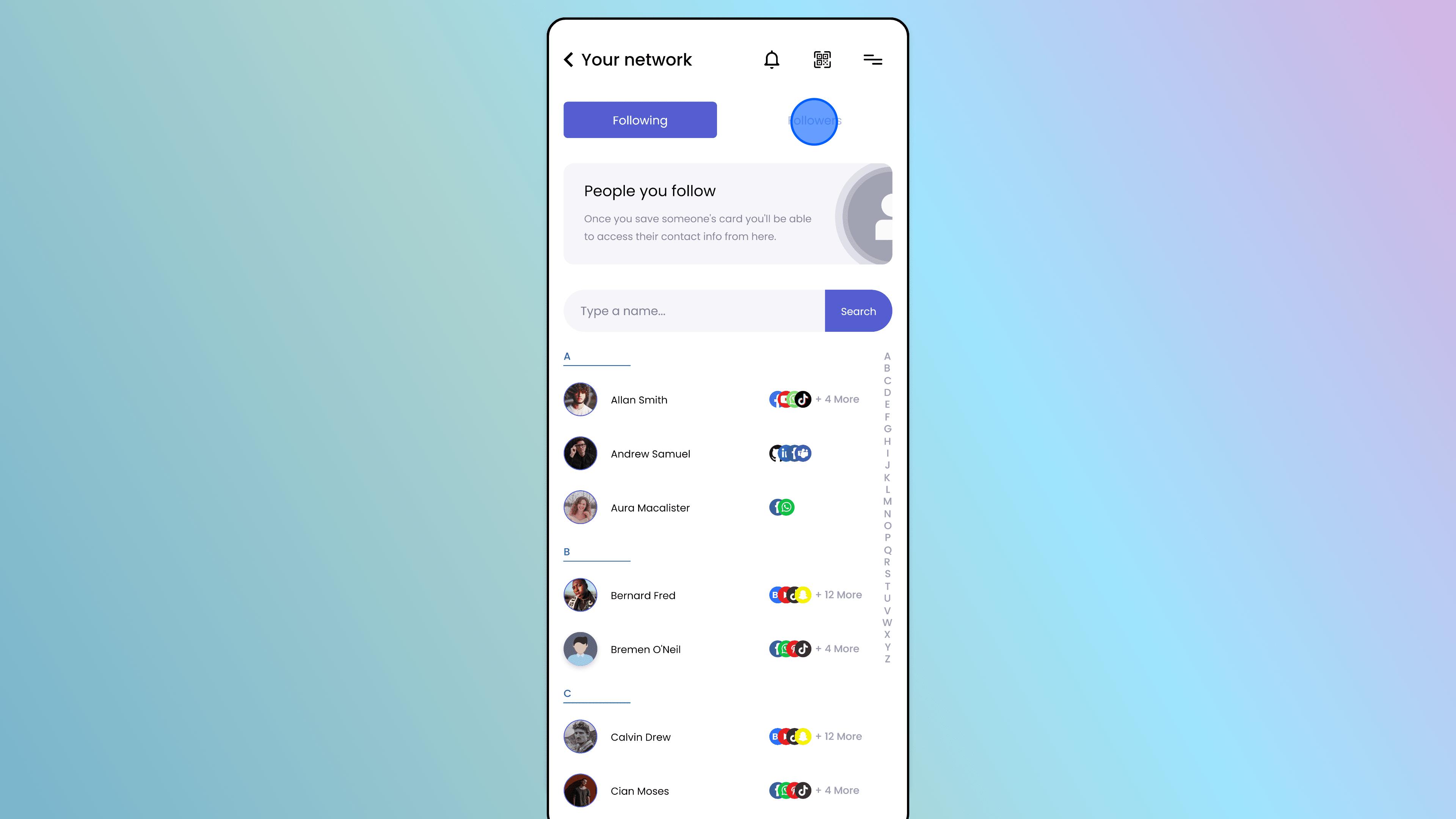
Switch to Followers (Optional)
The guide specifically notes tapping on "Followers" to view who saved your cards, though you can also view "People you follow" depending on who you want to remove.
Tap the relevant tab to find the person.
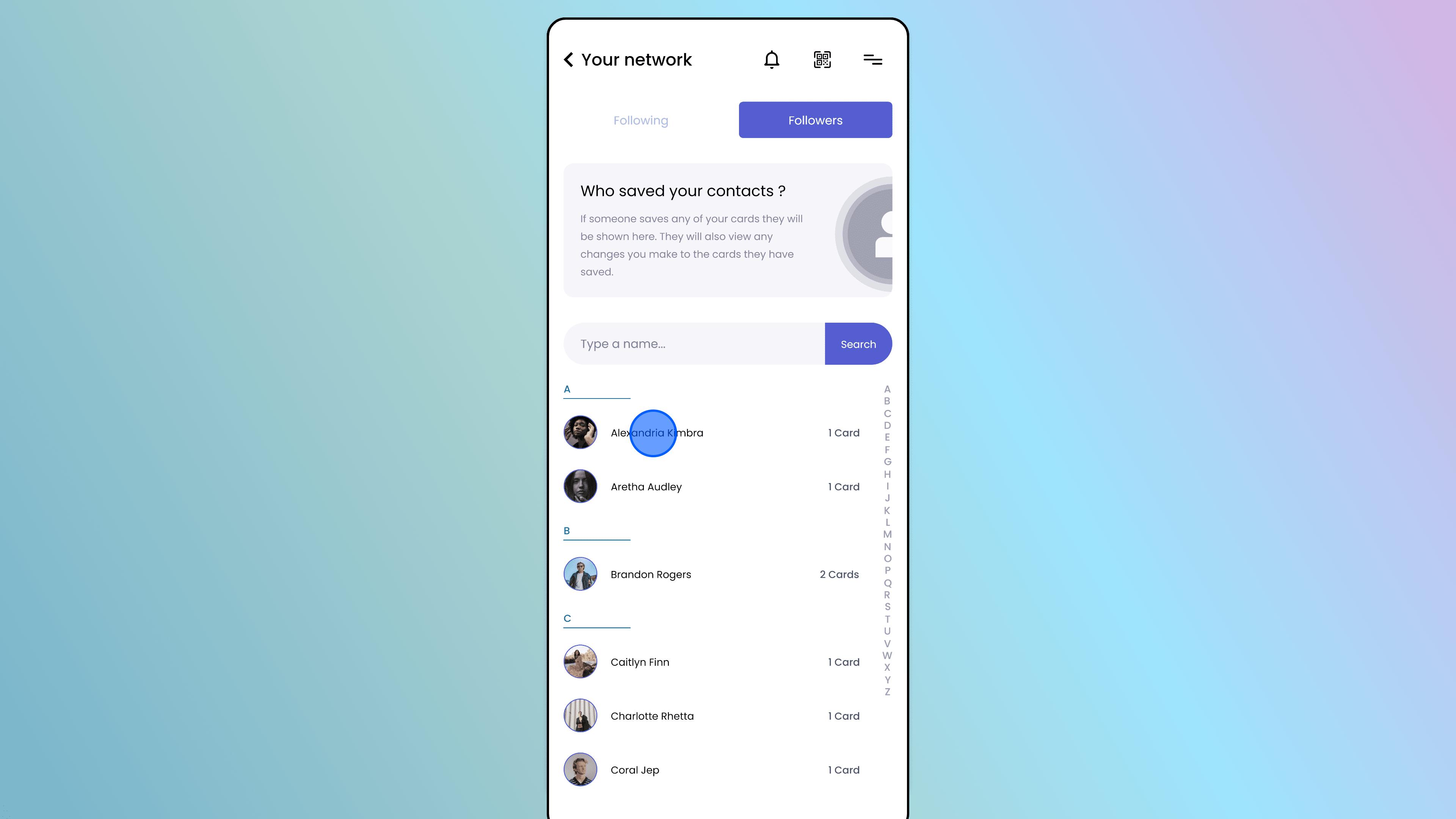
Select the Individual
Scroll through the list and locate the person you wish to disconnect from.
Tap on their name or card to select them.
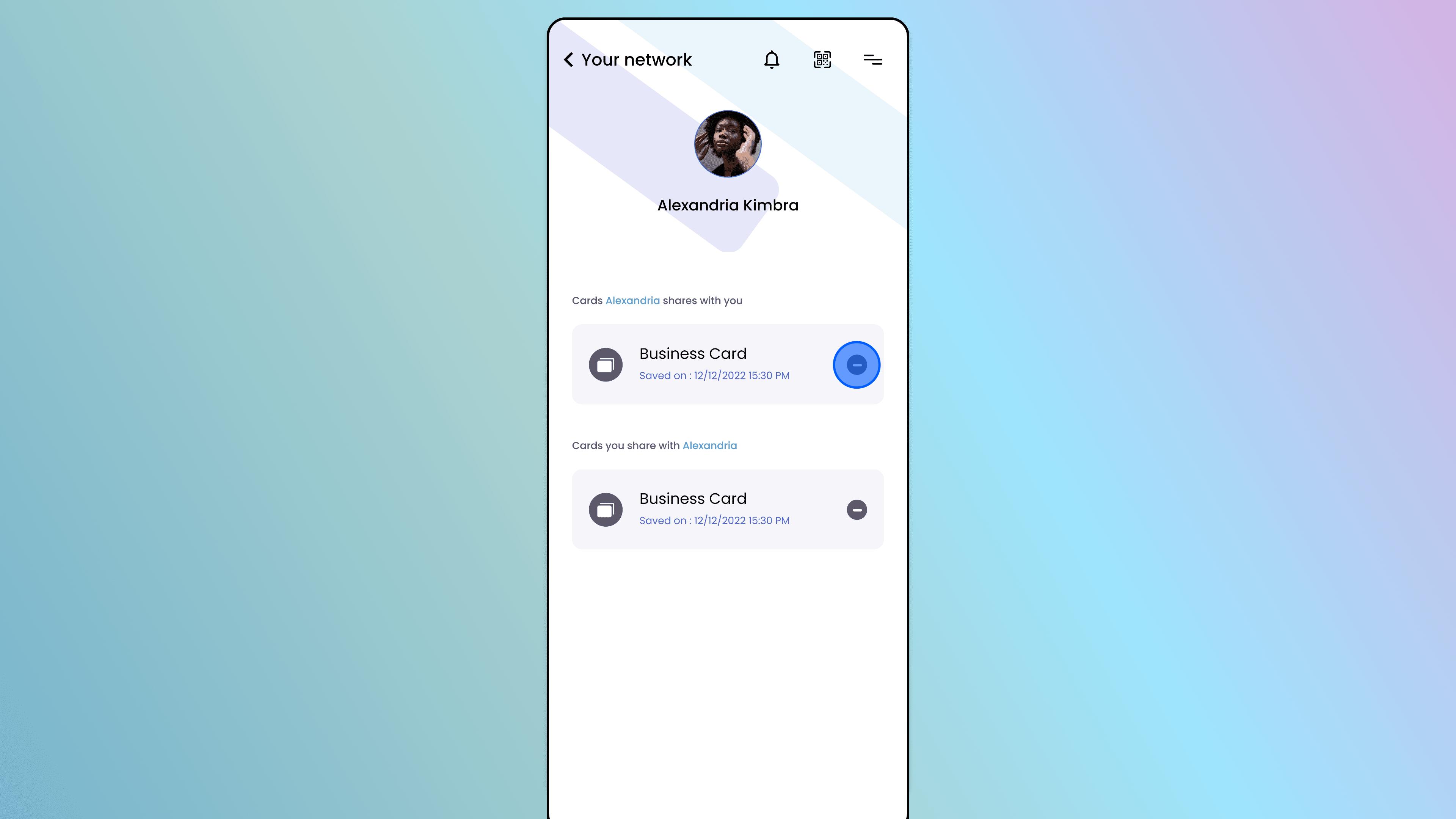
Disconnect
Once the individual’s card or profile is selected/visible, look for the delete icon (often a trash can symbol) or a "Disconnect" button.
Tap this icon to remove the connection.
Result The contact will be removed from your network list, and you will no longer be connected.
Walkthrough · 5 steps
Remove connection
Still stuck? Chat with us, send us a message or report an issue.