
This guide explains how to view the people you are following and those who have saved your card (your followers).
Step-by-Step Instructions
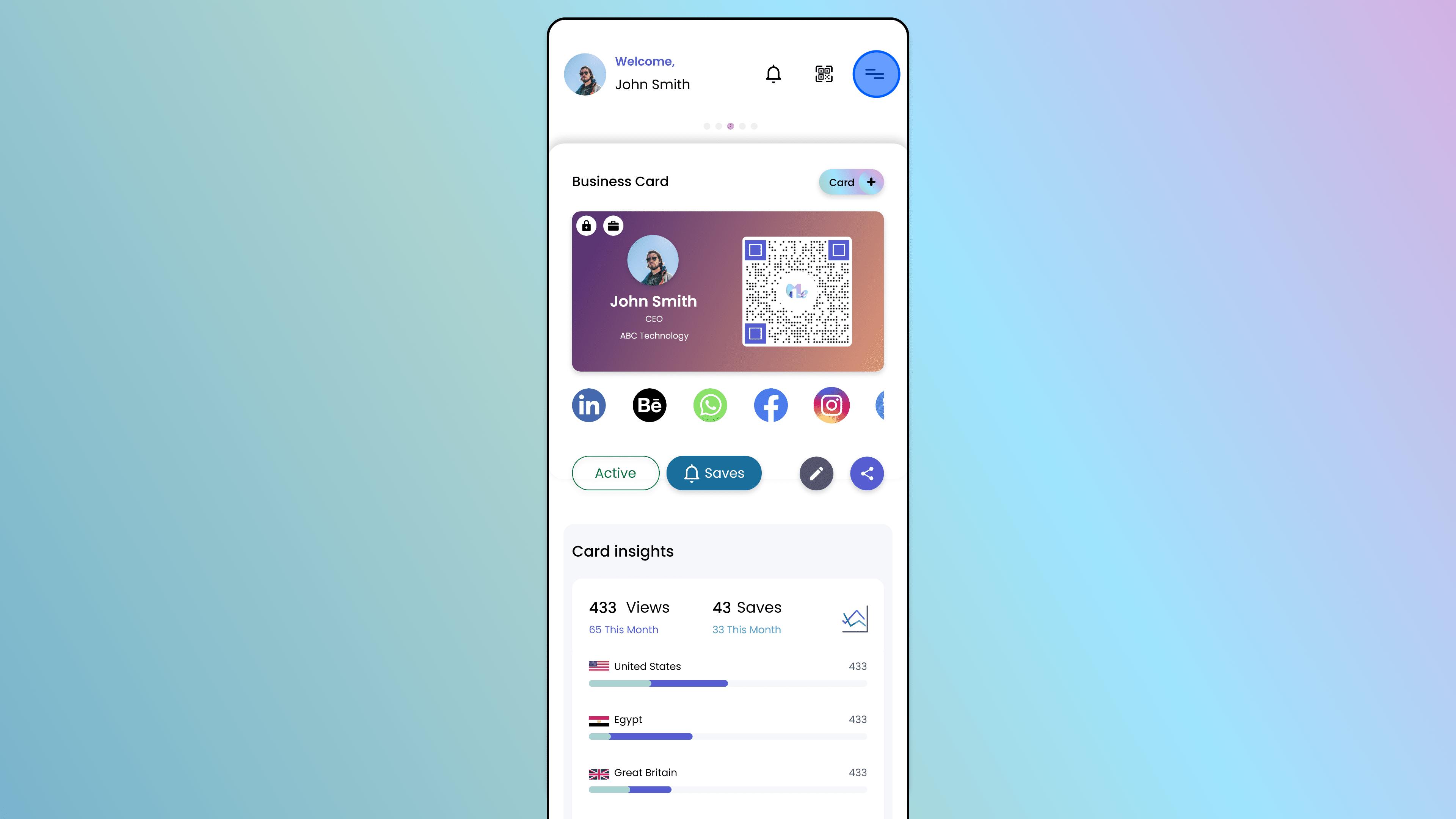
Open the Side Menu
On the main screen of the 1Me app, look for the Menu icon (often three lines or a profile icon in the corner).
Tap on it to reveal the side menu options.
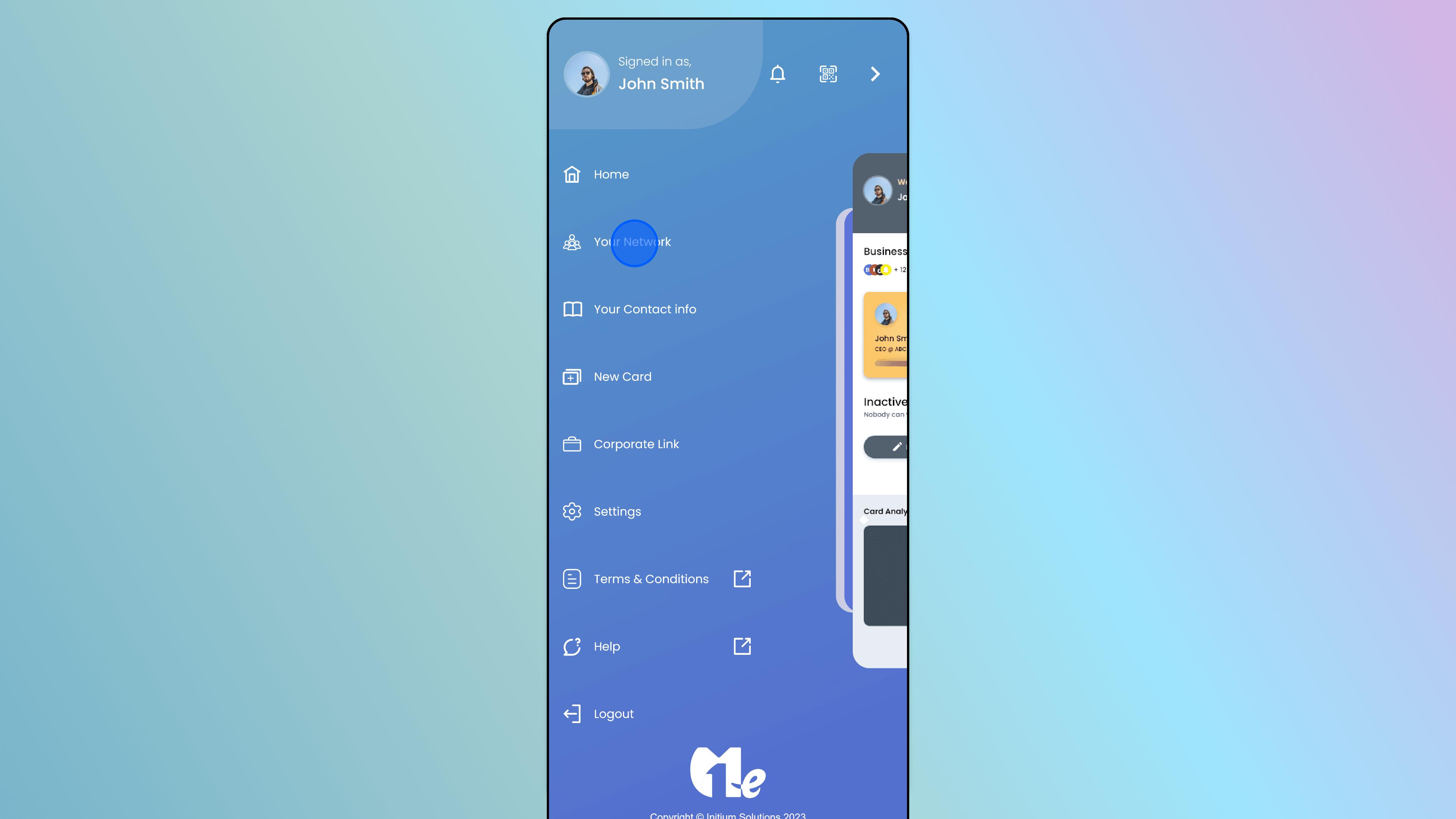
Access Your Network
From the list of menu items, locate and tap on "Your Network" (or "Network").
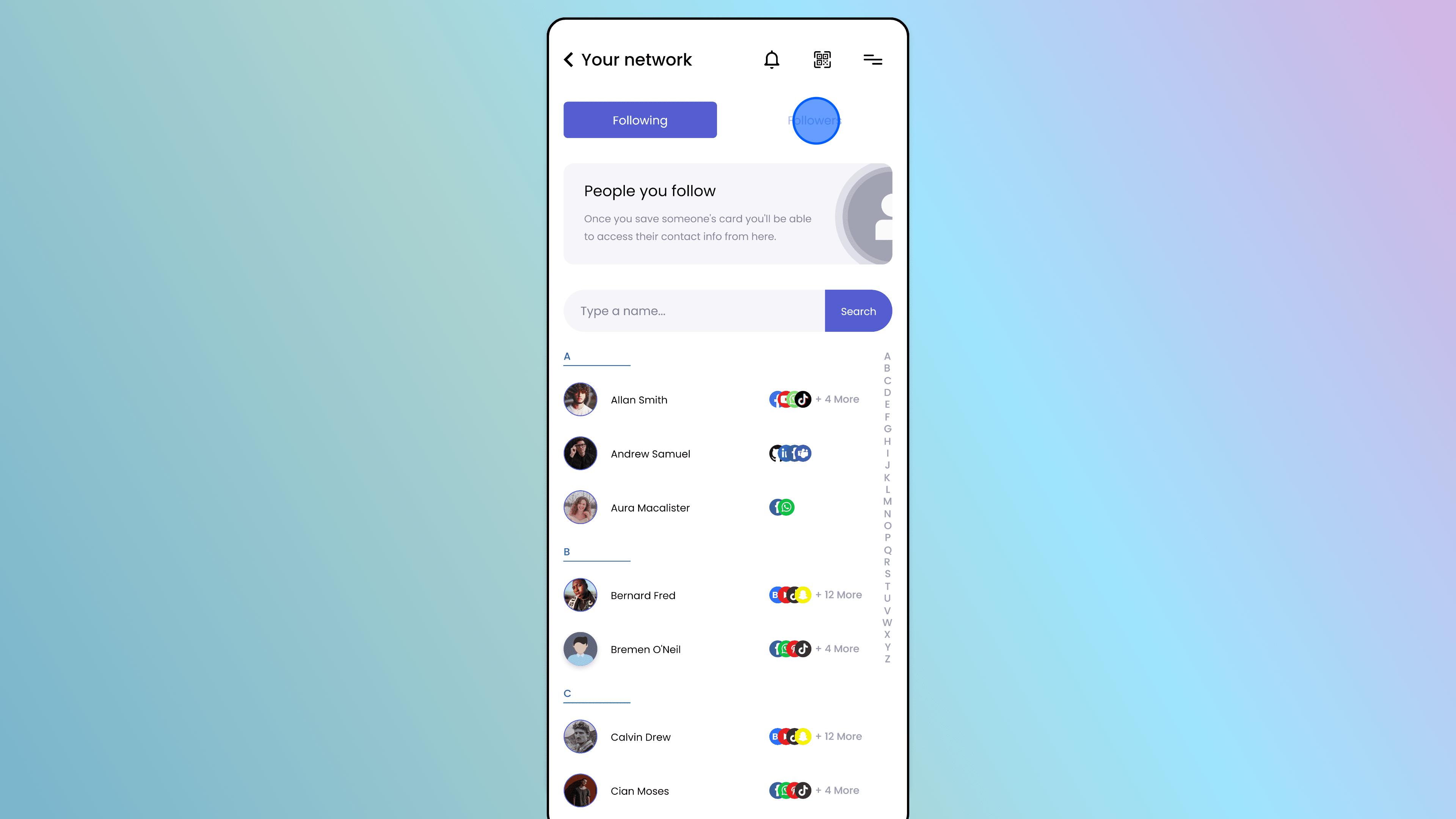
View Connections (People You Follow)
The default view typically shows "People you follow" – these are contacts you have scanned and saved.
Scroll through the list to see your saved connections.
View Followers
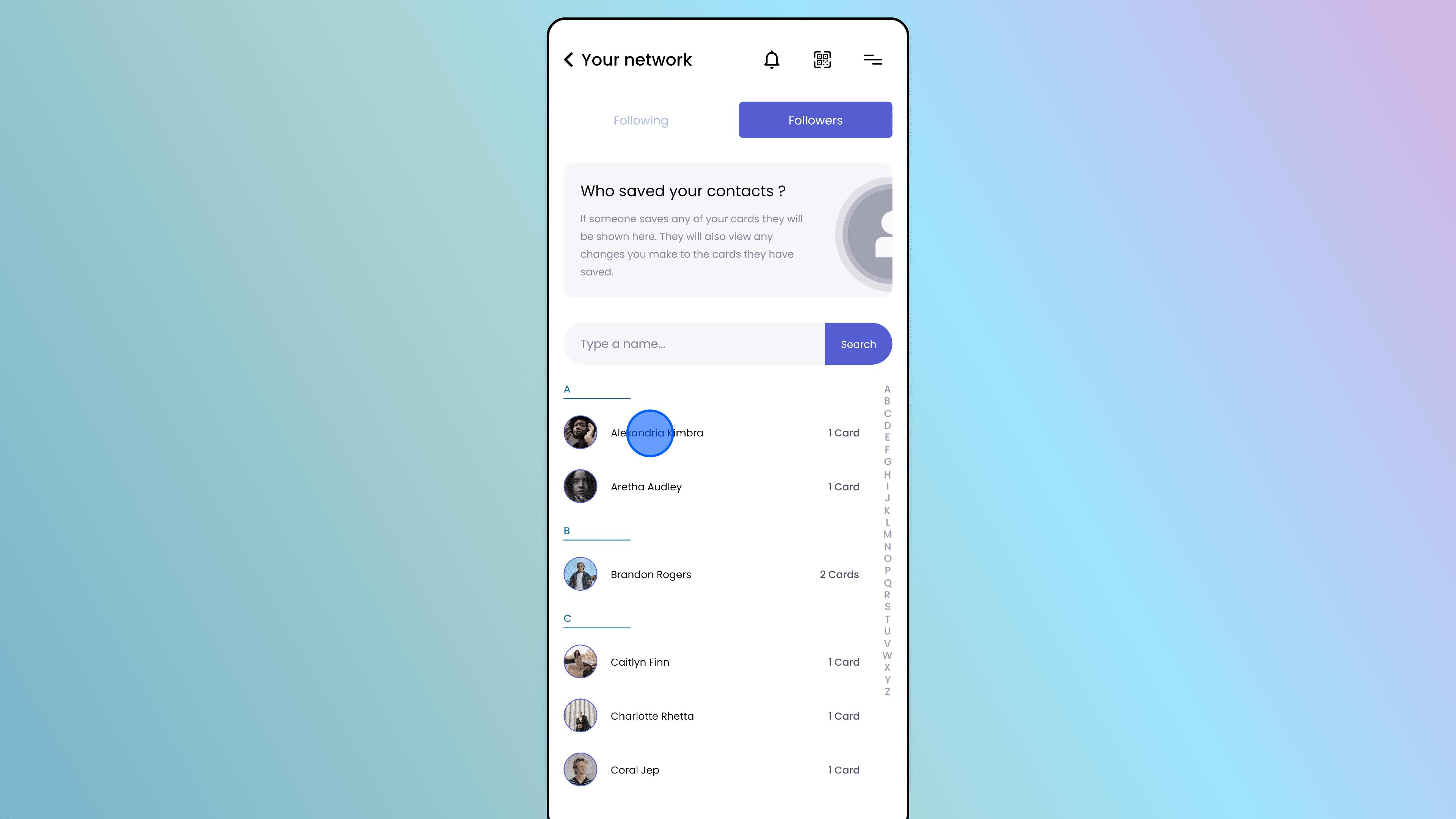
To see who has saved your card, look for a tab or button labeled "Followers" (or "Who saved your contacts?").
Tap on it to switch the view.
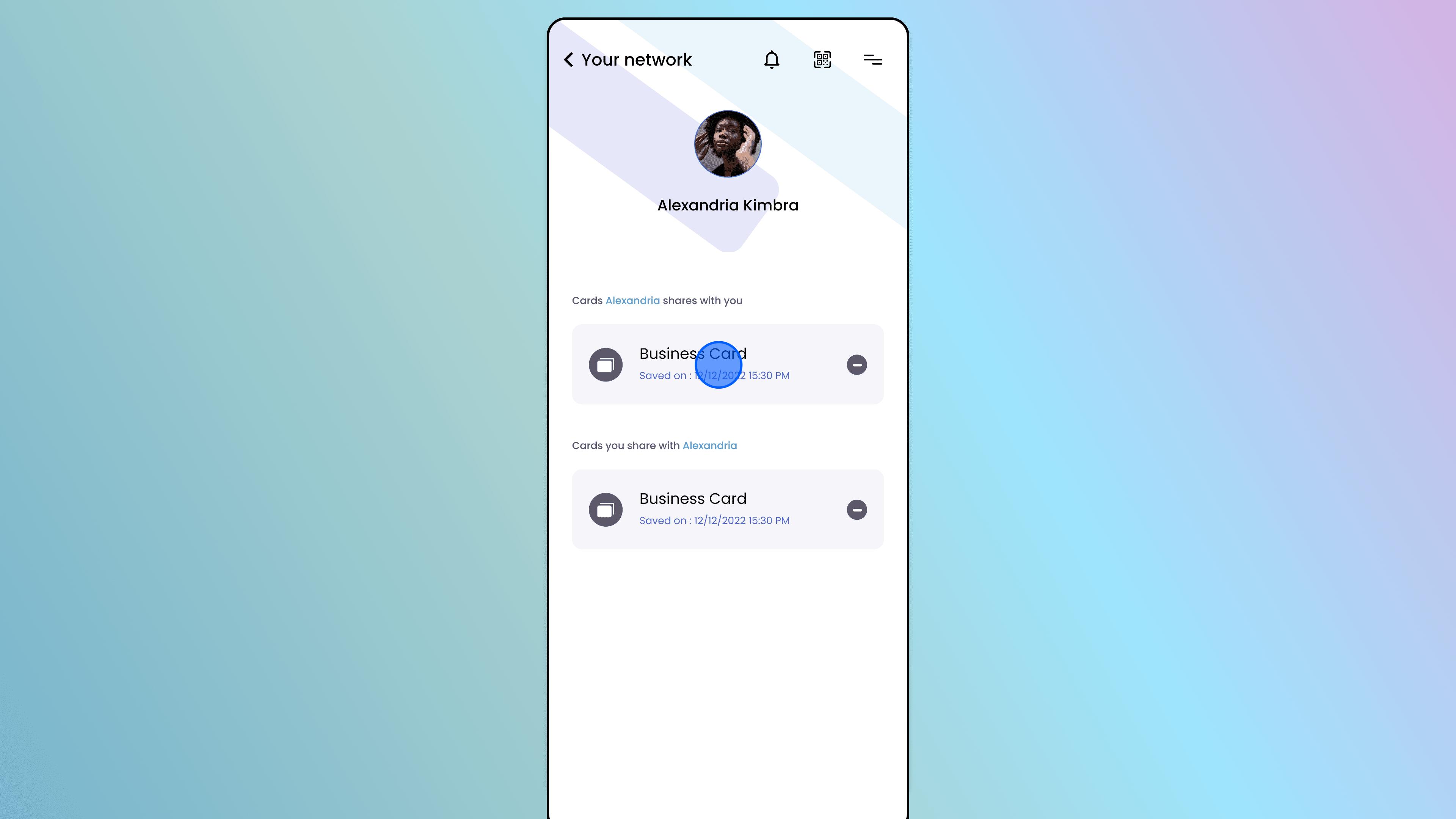
View Profiles
To see more details about a specific person, tap on their name or avatar.
This will open their profile page.
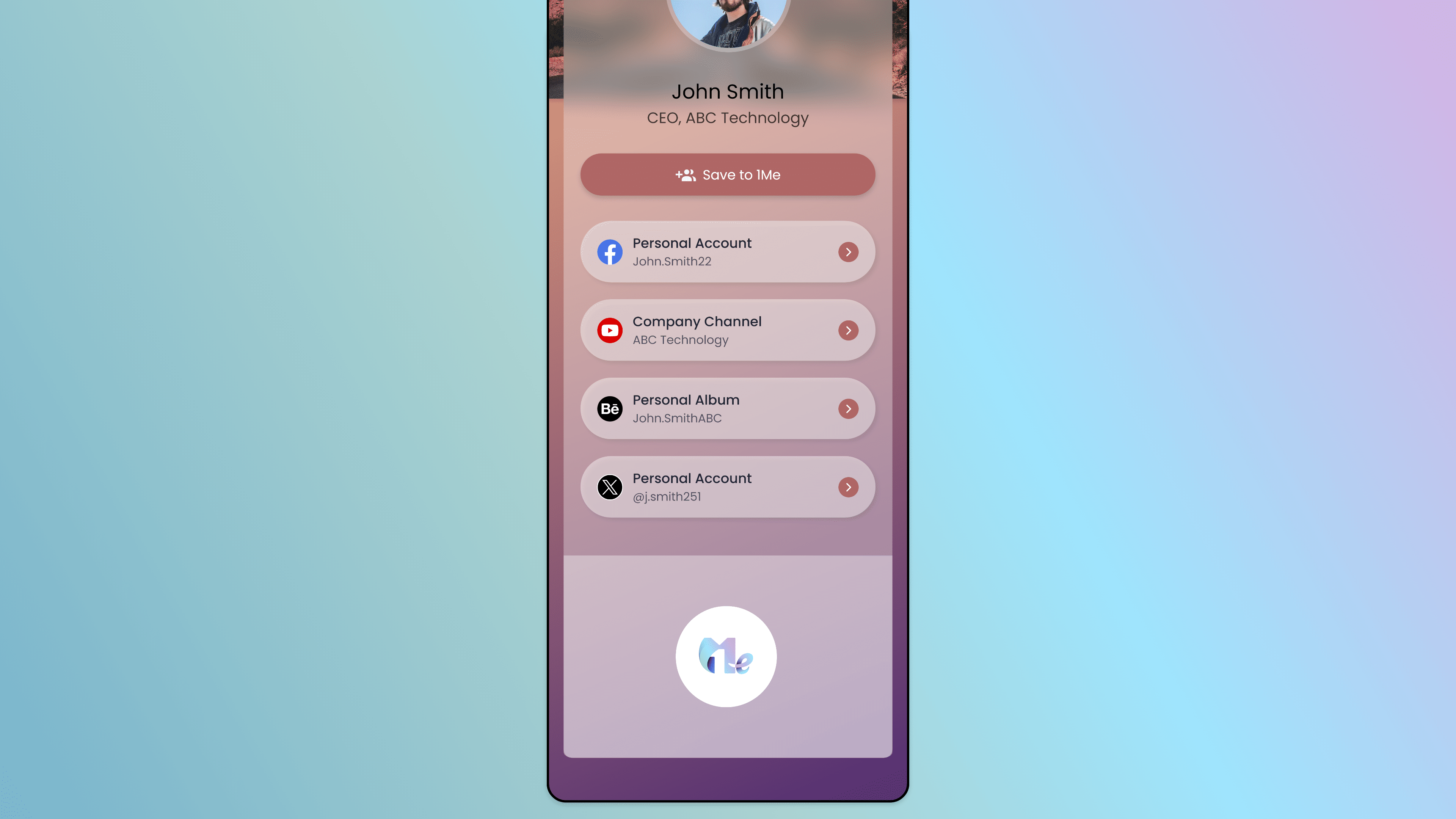
View Card Details
Within a person’s profile, tap on any specific card they have shared with you.
This will display the full digital business card with all their contact details, which you can then use to call, email, or visit their links.
Tip: Checking your "Followers" list is a great way to see who is interested in your services and to identify potential leads who have engaged with your shared cards.
Walkthrough · 6 steps
How to reach your network?
Still stuck? Chat with us, send us a message or report an issue.